Your retail notebook. In the AI you choose.
Ask what you agreed on your last store visit. Prepare for a one-on-one from your saved people notes. OperatorOS keeps the notebook; your connected assistant helps you use it. Switch supported assistants without rebuilding the records you’ve saved. Pro required; provider availability varies.
 Your record. Your choice.
Connect your AI to your notebook.
Bring your saved store notes, people and follow-ups into a supported assistant. Choose a provider to see its availability and setup steps.
01 / Choose your assistant
Connect more than one. Each assistant uses the same saved record; private chats stay separate.
A little setup. A lot less repeating.
You’ll add OperatorOS in Claude, then sign in to your OperatorOS account. We’ll keep the steps here for you.
Read access lets your AI retrieve records. Write access also lets it save changes when asked. Review the permissions before allowing access.
Team and Enterprise accounts may need an owner to add the connector first.
Connection details & manual setup
Name: OperatorOS · Authentication: OAuth. Don’t enter a client secret unless your provider requires a separately registered integration.
Commercial API schema for other clientsSiri & Shortcuts
In the next iOS update
Store briefings, saved information and notes. Not yet released.
Muse
Submitted for review
A directory connection is being reviewed. We’ll update this page when it’s available.
Instinct / iMessage
Setup being confirmed
We’re working out the supported connection flow. Not available yet.
AI Connections in the app
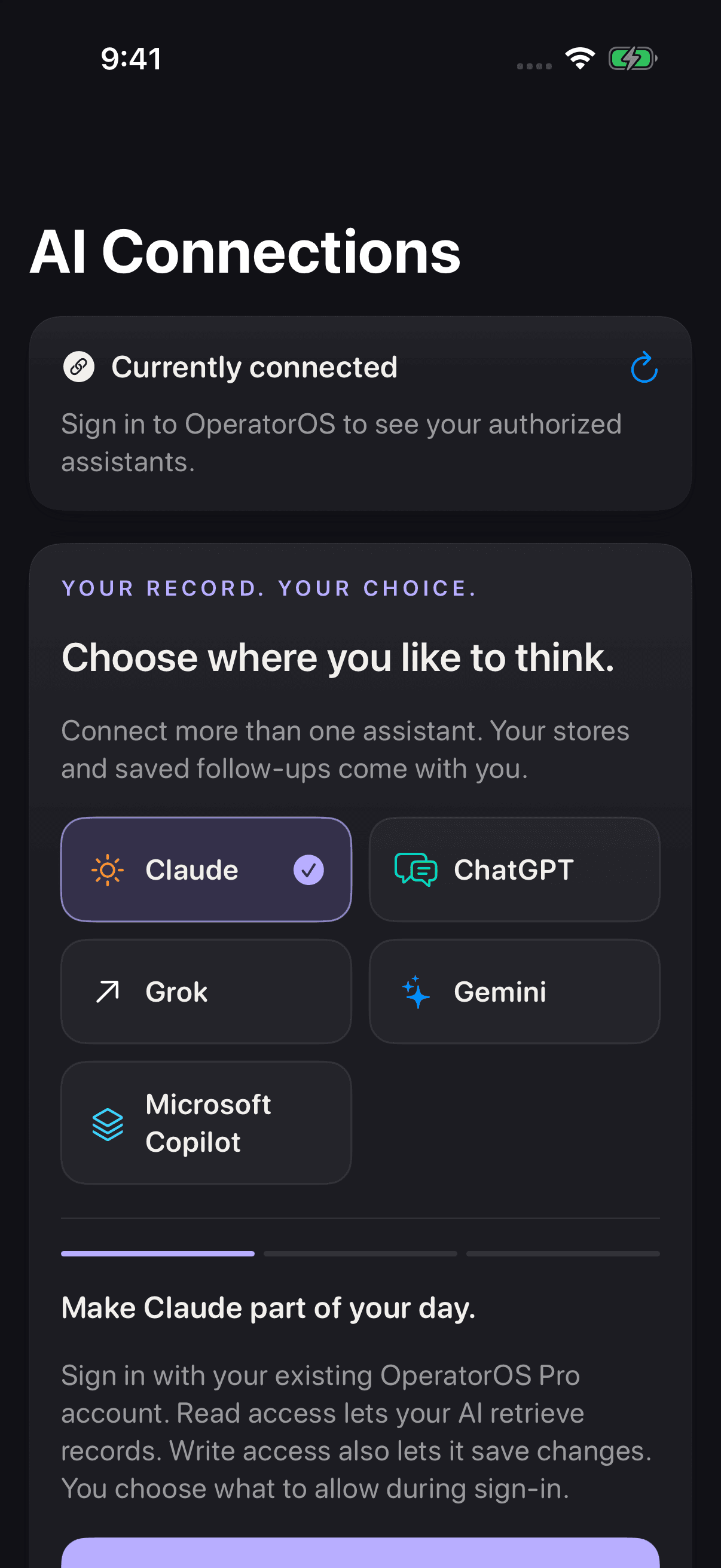
Choose an assistant. Control its access.
Choose a supported assistant in AI Connections and follow its setup steps. Sign in to see your authorized connections, and grant write access separately when you want an assistant to save updates. The preview shown here is signed out; selecting a provider does not mean it is connected.
iOS example · 4.2 (68). Shown signed out; this image does not indicate an active connection.
Enter it in the app
Capture while you work
Add a metric, store note, people note, visit observation, or commitment directly from the workflow in OperatorOS.
Or ask your connected AI
Save the context already in the conversation
Ask it to write approved store metrics, people context, commitments, or visit notes. OperatorOS keeps the source, time, record ID, and receipt.
Connection is permission, not an automatic feed. Read access and write access are separate OAuth permissions. Once write access is granted, authorized tool calls execute immediately and return a receipt. There is no additional OperatorOS approval dialog for each write; use your AI client’s confirmation controls and grant read-only access if you want retrieval only.
See exactly how data gets added →How it works
Capture the work once, authorize the connection, and ask questions from the AI environment you prefer.
Capture in the field
Use OperatorOS during your day — record visits, track commitments, log KPIs, conduct interviews. The records you save become the history you can return to.
Connect your AI
Add the OperatorOS connector to a supported MCP client. One-time setup uses secure OAuth authentication and access scoped to your account.
Ask or write
Query your record in natural language, then ask the assistant to save a metric, create a commitment, or append a factual visit or people note.
The store history you can bring into a conversation
Read tools retrieve authenticated OperatorOS context. Separately authorized write tools can record metrics, commitments, visit notes, and people notes with provenance and a write receipt.
Locations
Location profiles, recent visits, open commitments, metrics, and saved notes
Visit history
Confirmed closeouts, captured notes, transcripts, and original AI drafts
Commitments
Open follow-up, owners, due dates, and completion status
Performance
Saved metric values, trends, and comparisons
Interview records
Recorded interview context; the commercial connector does not make hiring judgments
Bounded writes
Optional notes, metrics, and commitments with source information and a write receipt
What you can ask or save
>Which stores am I overdue to visit?
>Summarize my last visit to Store 101
>What commitments are past due this week?
>How has my commitment follow-through rate changed over the last month?
>Show me KPI trends for labor cost across all my stores
>What came up in my interviews this week?
>Give me a weekly summary of everything I did
>Which stores need the most attention right now?
>Save these weekly sales results across my stores
>Add a follow-up for my conversation with Jordan on Friday
>Append this coaching note to Taylor's people record
Keep your notebook. Choose your assistant.
The AI Connector is included with OperatorOS Pro. Download the app, begin an eligible Apple-managed trial, and connect a supported AI to the operating record you build.